

Saudi Rheumatism Association
Dear colleagues and Association employees,
Warm greetings,
This guide explains how to organize your inbox in the Association's email system so you can easily return to messages, review them, and keep your email organized.
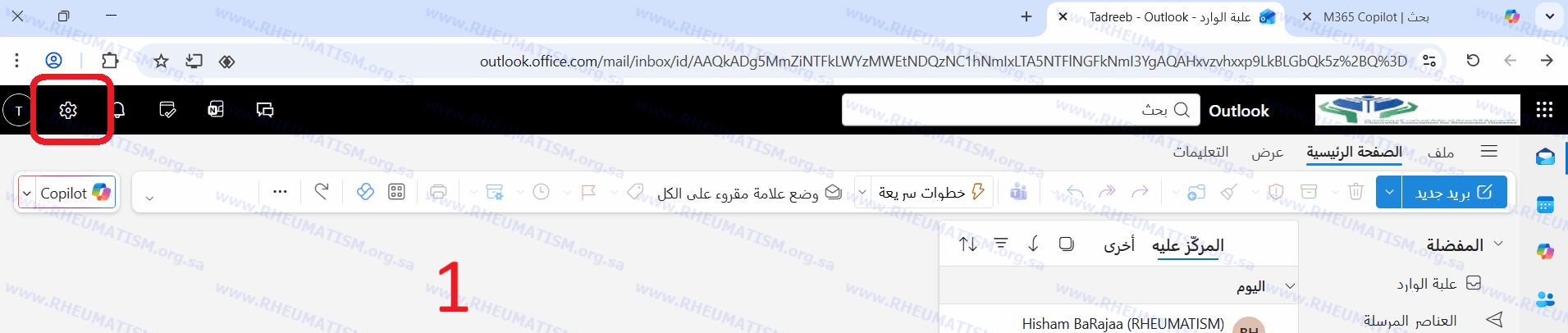
First, sign in to your email through the web. If your system is in Arabic, go to the upper-left corner and click the gear icon as shown in the following image:
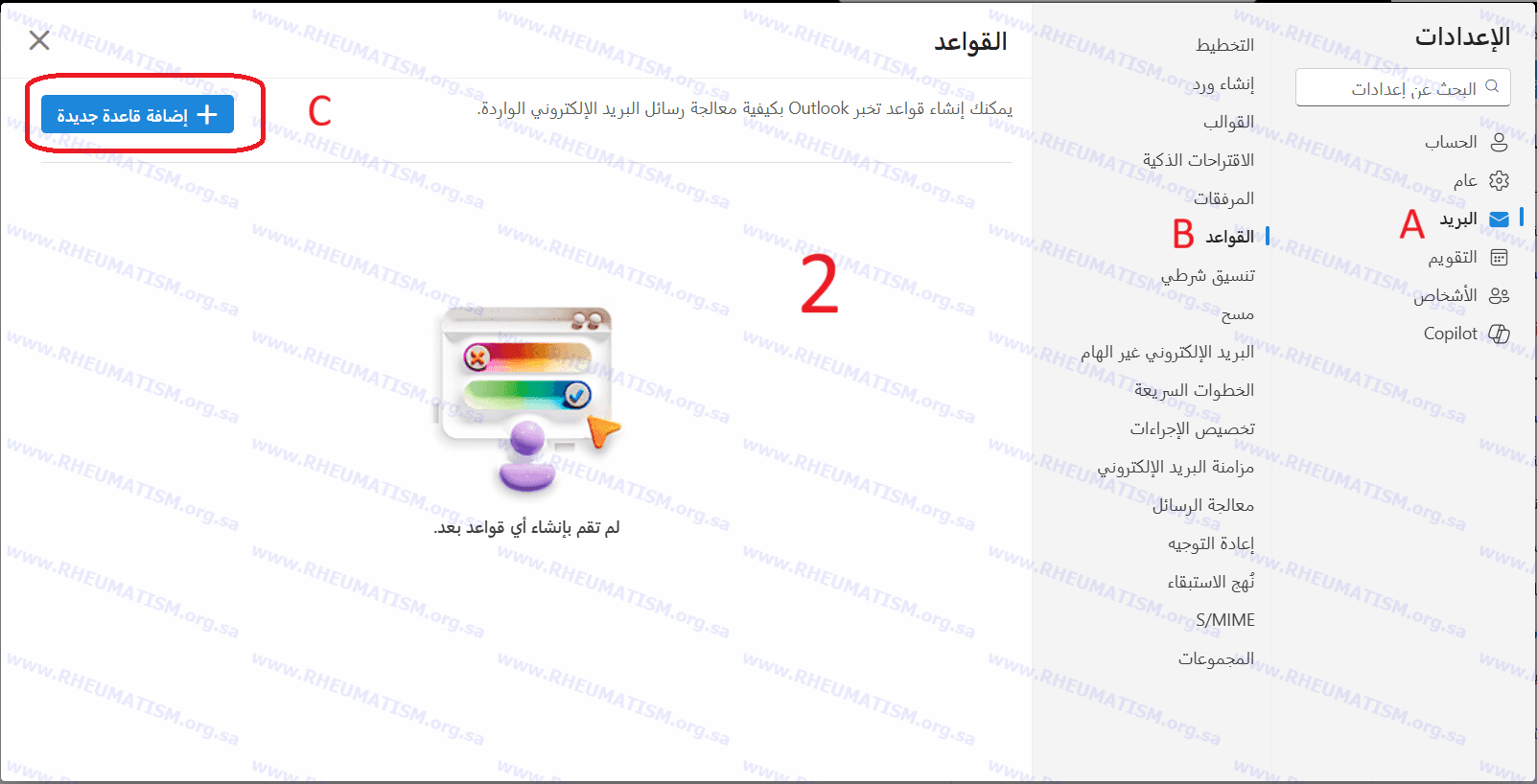
A new window will then open. Complete the following steps:
A- Click the email
B - Press down on the supports
C- Click "Add New Rule"
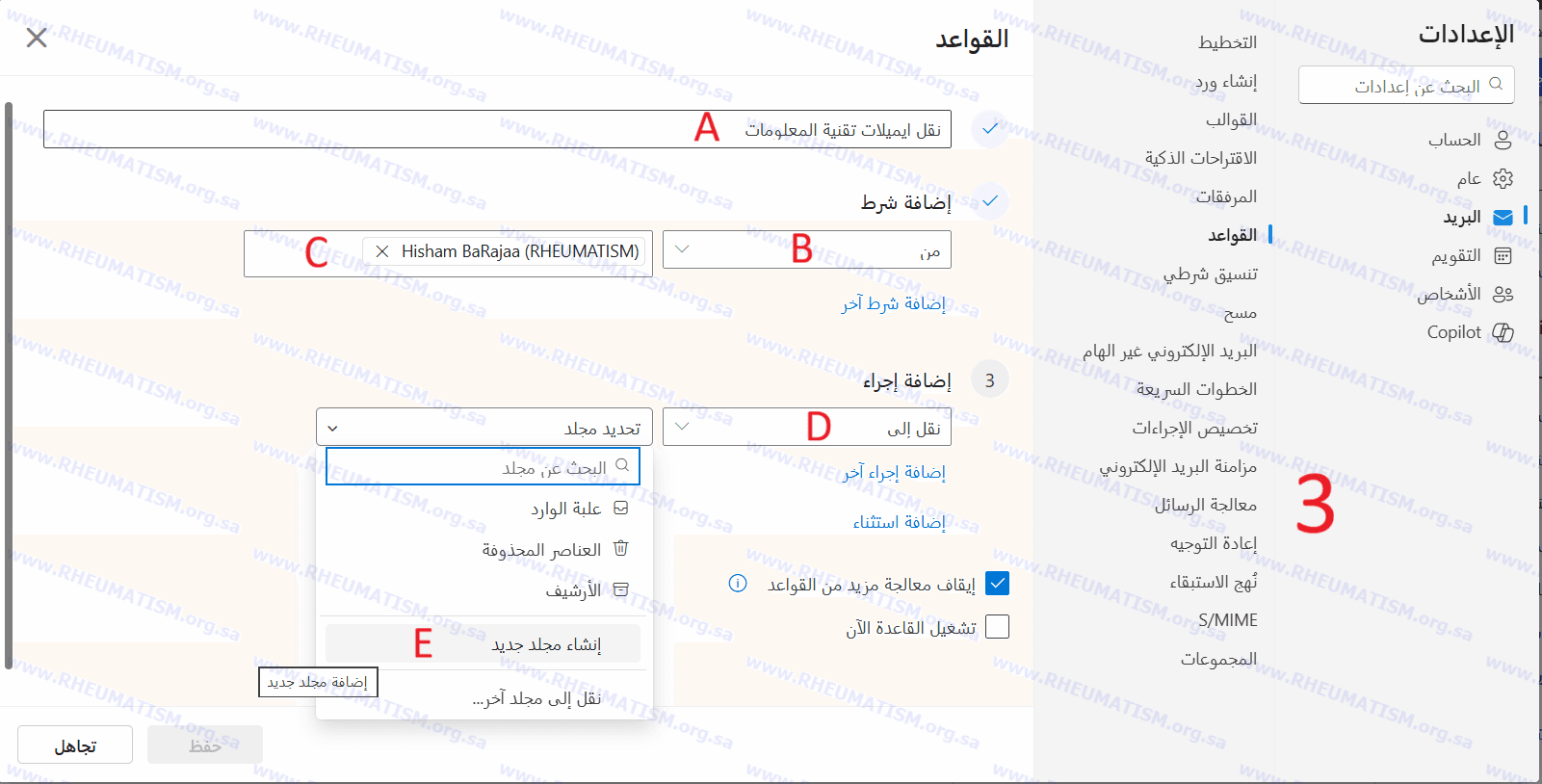
A new window will then open as follows:
A - Enter any name you prefer for the rule.
B- Select the condition, for example "From".
C- Enter the subject of the incoming email that you want to move automatically to the specified folder.
D- Under Action, select "Move to"
E- Select 'Create New Folder' and enter any folder name you wish; using the incoming email subject is recommended.
As shown in the following image:
Continue in the same way with the following steps:
A - Check both boxes.
B - Click Save.
As shown in the following image:
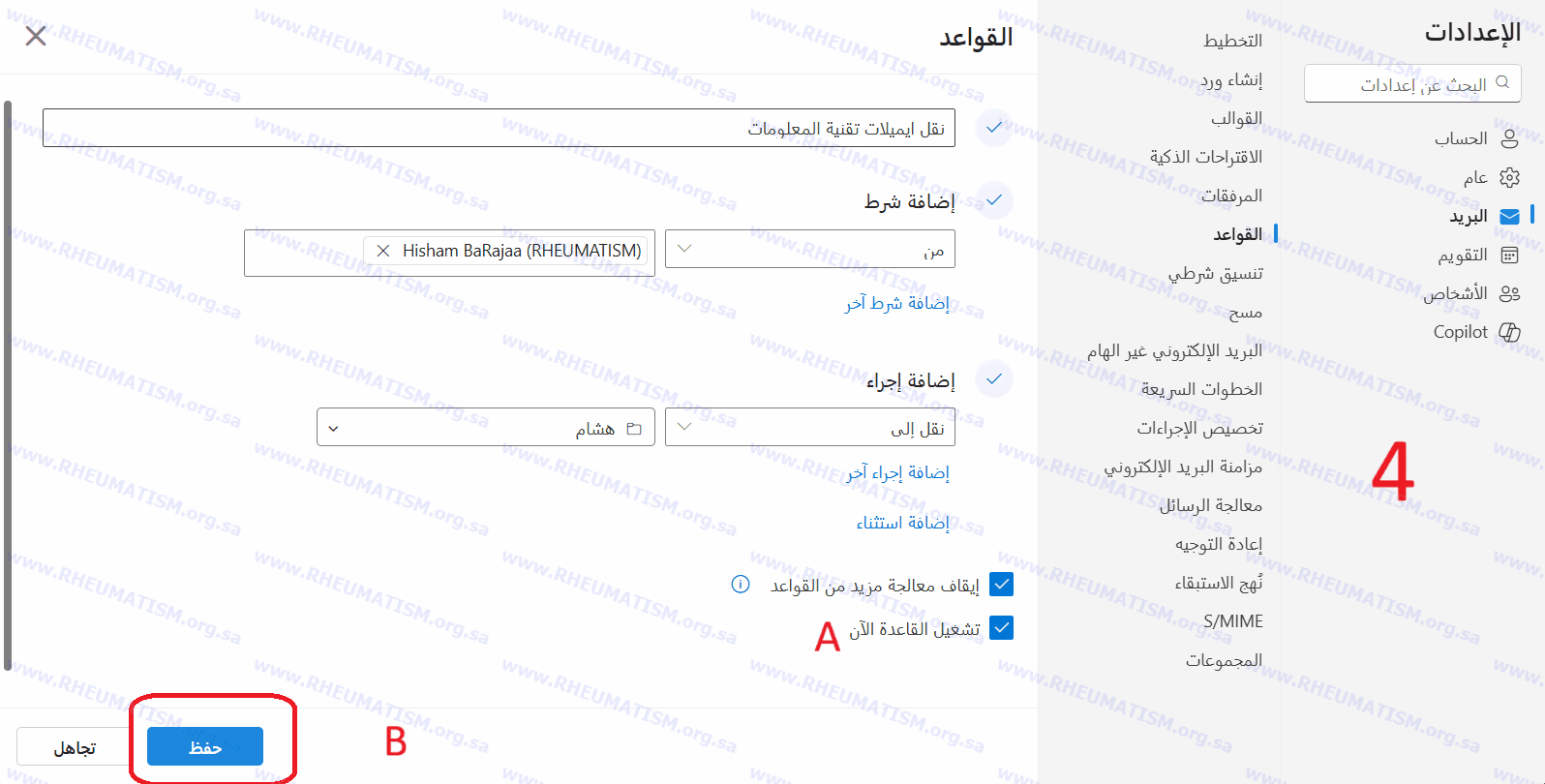
The following image then shows the completed conditional rule.
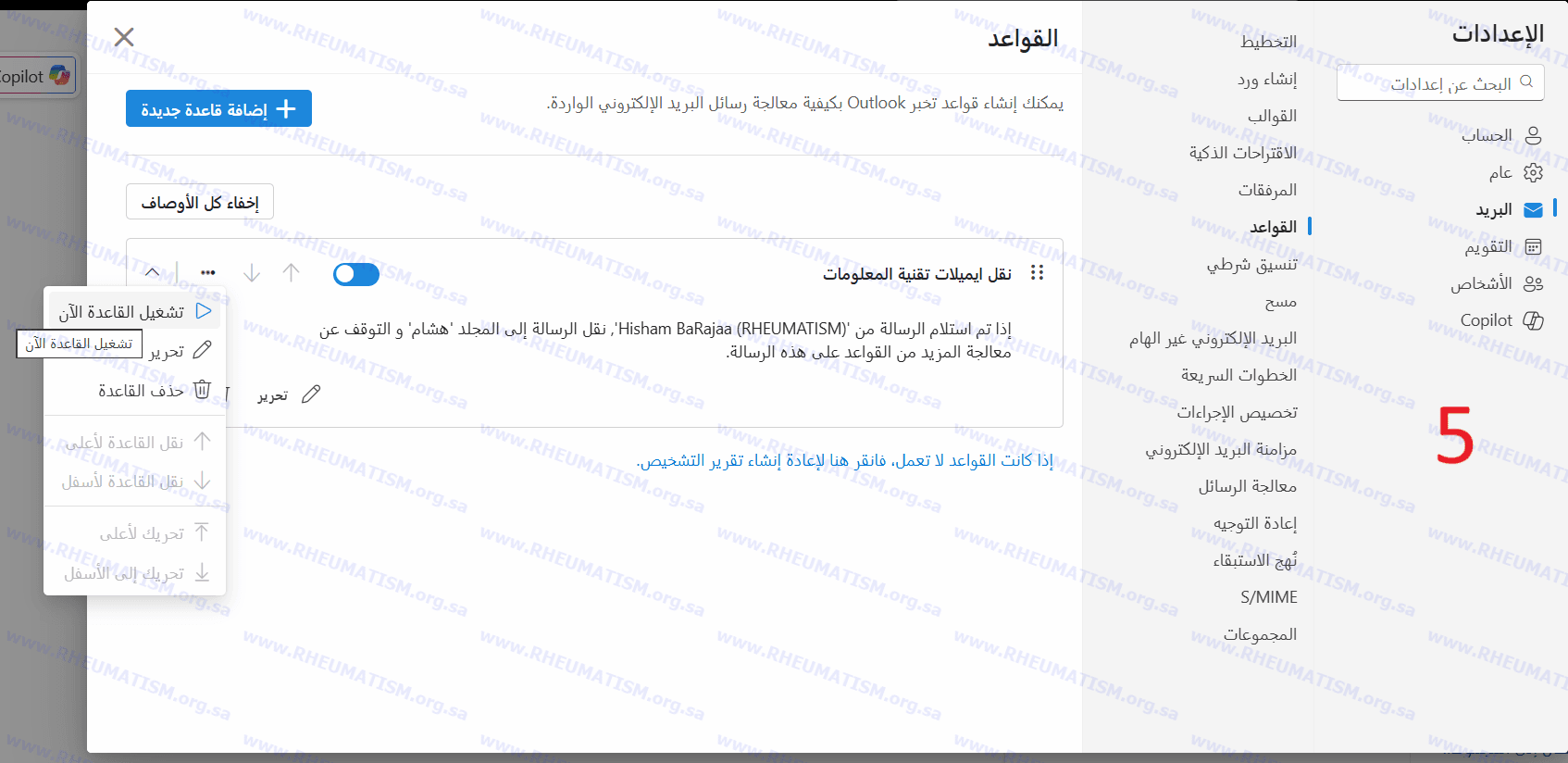
You will then notice that every email received from the address you entered in the rule will be moved automatically to the folder you created.
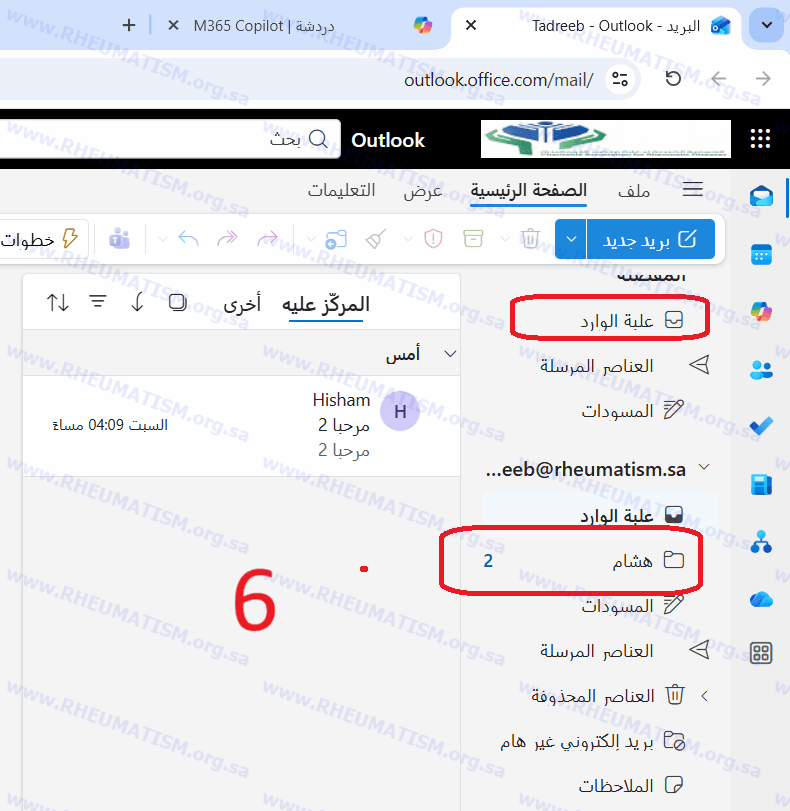
This completes the process of organizing your inbox so that it is orderly and uncluttered. Note the Inbox folder and the folder you created.
Wishing you well always
Published 7 December 2025